PROJECT: PrioriTask
PrioriTask is a desktop task management application. It is a combination of the to-do list, and calendar features, with an added bonus of automatic updating and sorting of the tasks based on priority levels.
The user interacts with PrioriTask by using a Command Line Interface (CLI), and has a Graphical User Interface (GUI) created with JavaFX.
This application is based on the AddressBook-Level4 (AB4) project created by SE-EDU initiative. It is written in Java, and has about 10 ~ 20 kLoC.
Summary of contributions
-
Major enhancement: added a calendar
-
What it does: Allows users to have a have a chronological overview of the deadlines of all their tasks, and to switch between different months.
-
Justification: This feature improves the product significantly because users would want at-a-glance views of upcoming tasks by month so that they can effectively keep track of their tasks. The GUI was created with JavaFX, and interacts with the
ModelandLogiccomponents for users to execute the respective CLI commands. This enhancement required an in-depth analysis of design alternatives. The implementation too was challenging as it required changes to the existing GUI, and no third-party calendar library was used to draw the calendar. -
Highlights: This enhancement affects existing commands and commands to be added in future. It required an in-depth analysis of design alternatives. The implementation too was challenging as it required changes to existing commands.
-
-
Minor enhancement: Extended the
Findcommand to allow users to either: -
Code contributed: [Functional code] [Test code]
-
Other contributions:
-
Project management:
-
Managed releases
v1.2-v1.5rc(4 releases) on GitHub.
-
-
Enhancements to existing features:
-
Fix bugs:
-
Documentation:
-
Did cosmetic tweaks to existing contents of the User Guide. (PR #146)
-
Made changes to existing sections of the Developer Guide to fix mistakes and to reflect our current product. (PRs #18, #82, #150, #172, #198, #207)
-
Made changes to existing sections of the User Guide to reflect our current product. (PRs #16, #96)
-
Updated README and About Us to reflect our current team and our current product. (PRs #69, #70)
-
Modified the User Guide so that it is more organised, and more information is provided for first-time users. (e.g. how to install the application, how to sign up and login, etc.) (PR #190)
-
-
Community:
-
Tools:
-
Integrated new Github plugins (
AppVeyor,Coveralls, andNetlify) to the team repo
-
-
Contributions to the User Guide
Given below are sections I contributed to the User Guide. They showcase my ability to write documentation targeting end-users. |
Locating tasks [since v1.2]
Depending on the suffix (or lack of) at the end of the find command, you can find tasks whose names, descriptions and/or deadlines contain any of the given keywords.
Locating tasks: find or f
Find tasks whose names, descriptions or deadlines contain any of the given keywords.
Format: find KEYWORD [MORE_KEYWORDS] or f KEYWORD [MORE_KEYWORDS]
|
Only the name, description and deadline are searched. |
Examples:
-
find Guide
Returns tasks whose names and/or descriptions containUser GuideandDeveloper Guide
The calendar is updated with the new task listing reflected on theTask List Panel -
f CS2101 Developer User
Returns any task having names and/or descriptionsCS2101,Developer, orUser
The calendar is updated with the new task listing reflected on theTask List Panel -
find User 2018-03-17
Returns tasks whose names and/or descriptions containingUser, and tasks with deadlines2018-03-17
The calendar is updated with the new task listing reflected on theTask List Panel
Locating tasks by name: findn or fn
Find tasks whose names contain any of the given keywords.
Format: findn KEYWORD [MORE_KEYWORDS] or fn KEYWORD [MORE_KEYWORDS]
|
Only the name is searched. |
Examples:
-
findn Guide
ReturnsUser GuideandDeveloper Guide
The calendar is updated with the new task listing reflected on theTask List Panel -
fn CS2101 Developer User
Returns any task having namesCS2101,Developer, orUser
The calendar is updated with the new task listing reflected on theTask List Panel
Locating tasks by description: finddes or fdes
Find tasks whose descriptions contain any of the given keywords.
Format: finddes KEYWORD [MORE_KEYWORDS] or fdes KEYWORD [MORE_KEYWORDS]
|
Only the description is searched. |
Examples:
-
finddes Study
Returns tasks with descriptionsStudy midtermsandstudy chapter 2
The calendar is updated with the new task listing reflected on theTask List Panel -
fdes Study Update Chapter
Returns any task having descriptions containing wordsStudy,Update, orChapter
The calendar is updated with the new task listing reflected on theTask List Panel
Locating tasks by deadline: findd or fd
Find tasks whose deadlines contain any of the given keywords.
Format: findd KEYWORD [MORE_KEYWORDS] or fd KEYWORD [MORE_KEYWORDS]
|
Only the deadline is searched. |
Examples:
-
findd 2018-03-17
Returns tasks with deadlines2018-03-17
The calendar is updated with the new task listing reflected on theTask List Panel -
fd 2018-03-17 2018-09-04 2018-03-21
Returns any task having deadlines2018-03-17,2018-09-04, or2018-03-21
The calendar is updated with the new task listing reflected on theTask List Panel
Calendar Features
The calendar allows you to have a chronological overview of the deadlines of all your tasks. Tasks on the calendar changes according to the last task listing. By default, you will view the current month when you first open PrioriTask. The diagram below (refer to PrioriTask’s main page) shows how the calendar would look like when displayed with task entries.
|
The calendar is best viewed fully-maximised on a 1280 x 720 screen (usually a 13” computer screen). The display of the calendar may differ from pictures on other computer screens. |
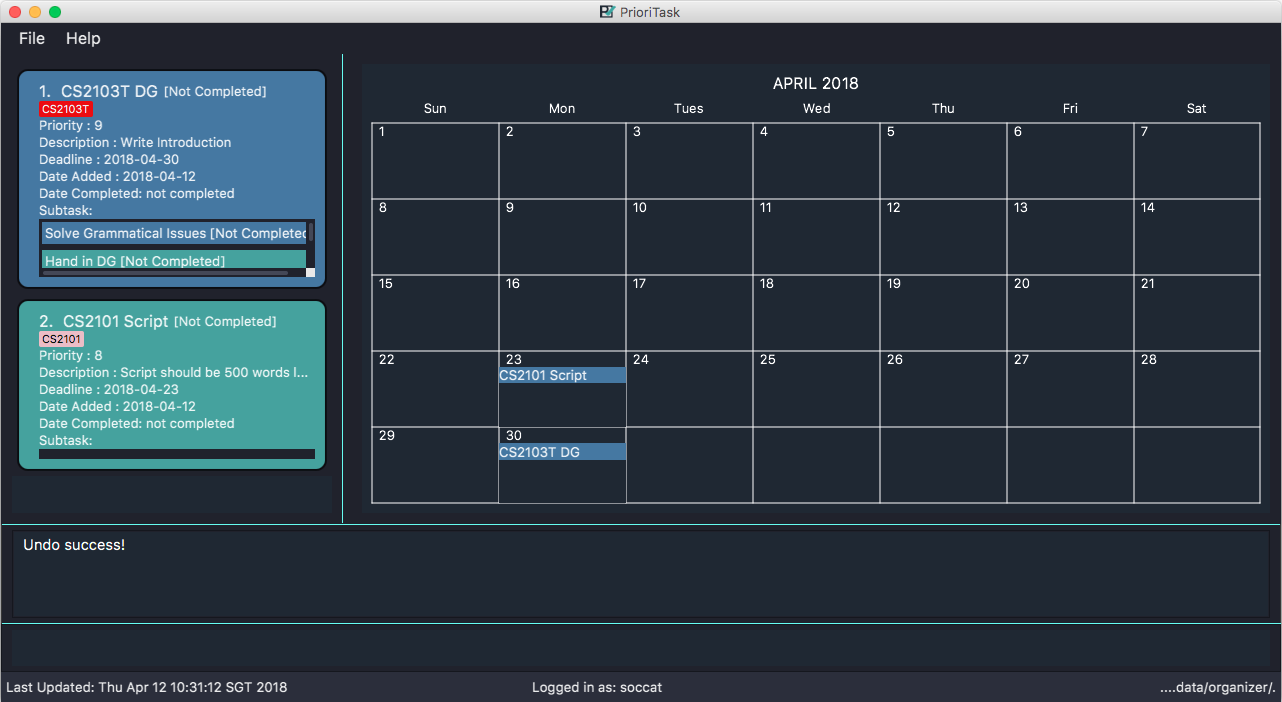
In future releases, the calendar will support,
-
Displaying of only the completed or uncompleted tasks on the calendar, regardless of the last task listing
[coming in v2.0]. -
Viewing of the calendar by days, weeks and years
[coming in v2.0].
Going to current month: cmonth or cm [since v1.4]
Change the view of the calendar to that of the current month.
Format: cmonth
Example:
-
Current month is
April 2018
ViewsDecember 2018
cmonth
Goes toApril 2018
Going to previous month: pmonth or pm [since v1.4]
Change the view of the calendar to that of the previous month.
Format: pmonth
Example:
-
Views
March 2018
pmonth
Goes toFebruary 2018
Going to next month: nmonth or nm [since v1.4]
Change the view of the calendar to that of the next month.
Format: nmonth
Example:
-
Views
March 2018
nmonth
Goes toApril 2018
Contributions to the Developer Guide
Given below are sections I contributed to the Developer Guide. They showcase my ability to write technical documentation and the technical depth of my contributions to the project. |
Calendar Feature
The Calendar resides mainly in the UI component, constantly interacting with the Logic and Model components to complete its tasks. It allows users to have a chronological overview of the deadlines of all their tasks. Tasks on the calendar changes according to the last task listing. By default, users will view the current month when they first open PrioriTask.
The calendar feature is currently in its early stages of implementation. At present, it only supports the switching between months, and is best viewed fully-maximised on a 13” computer screen.
Current Implementation
The calendar feature is facilitated by the MonthView class, which supports the CalendarPanel. The MonthView is responsible for displaying a monthly calendar view to the users through the CalendarPanel. The following diagram (refer to Structure of the Calendar Feature) illustrates the structure of the calendar feature system:
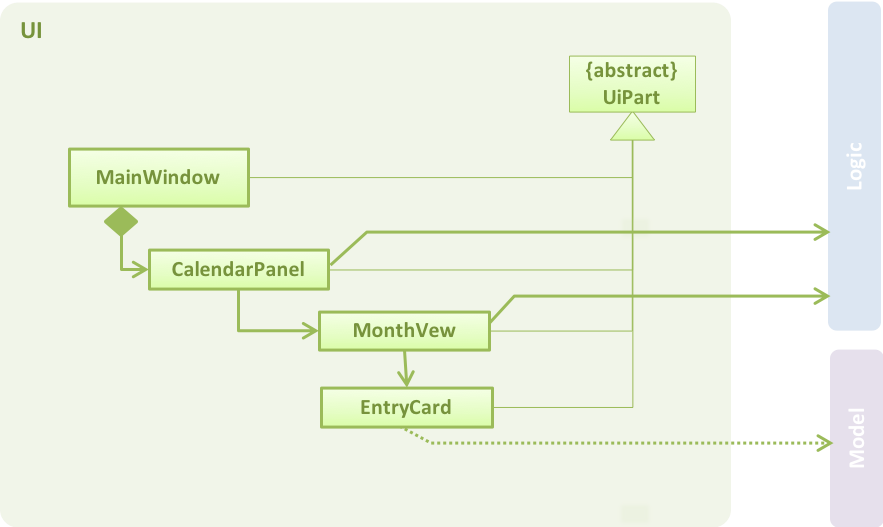
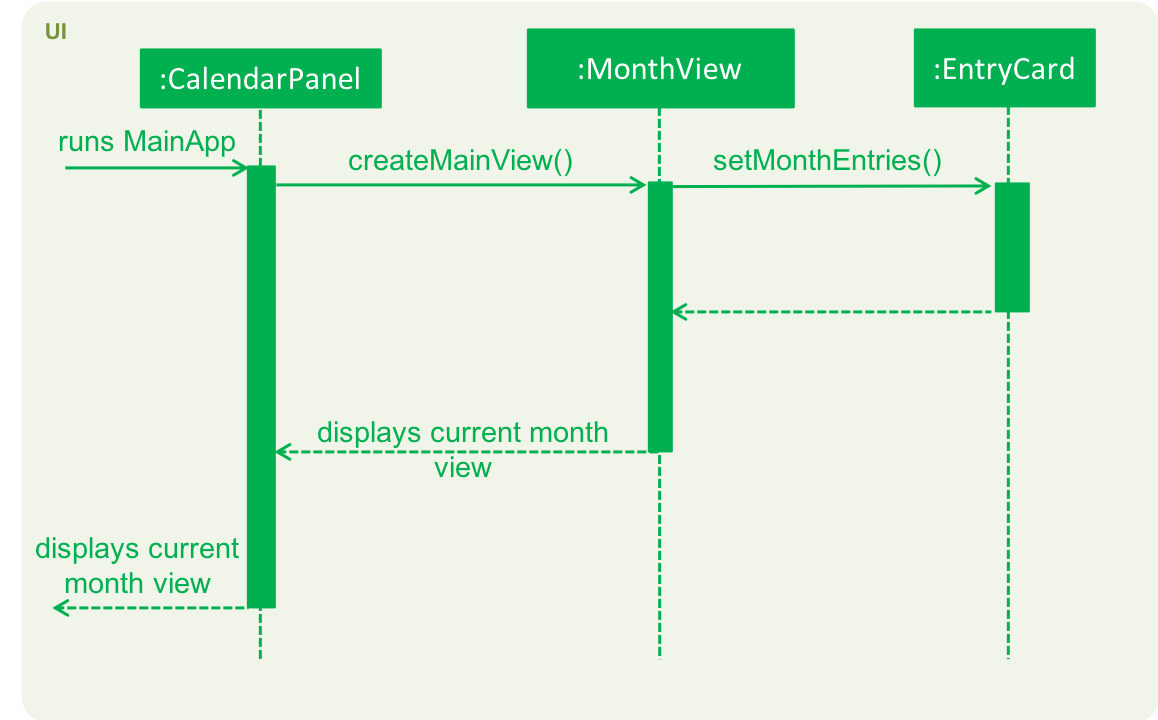
The following sequence diagram (refer to Calendar Sequence Diagram) illustrates how the different classes work together to display the calendar when users first run the application.
Below describes the the implementation of the different classes supporting the calendar feature.
Implementation of EntryCard
EntryCard is responsible for displaying the name of a Task on the calendar. It is called by MonthView when mapping each Task to an EntryCard. The method is implemented as such:
private ObservableList<EntryCard> getEntryCardsList(int year, int month) {
    FilteredList<Task> filteredList = getFilteredTaskList(year, month);
    SortedList<Task> taskSortedList = getSortedTaskList(filteredList);

    return EasyBind.map(taskSortedList, (task) -> new EntryCard(task));
}
An EntryCard will be added to a specific date which reflects the deadline of the Task. It is displayed on the calendar with the help of the JavaFX ListView object. More details of how this is implemented is further discussed in Implementation of MonthView.
Implementation of MonthView
MonthView is in charge of executing several tasks. It is responsible for,
-
Drawing the month view of the calendar, and populating the dates.
-
Adding the tasks’ entries onto the calendar, according to the last task listing. The calendar is also updated every time an undoable command is executed (refer to [Undo/Redo feature] for more details about an undoable command).
-
Aiding the
Logiccomponent by switching the month view accordingly when users execute the respective calendar feature commands (e.g.pmonth,nmonth, etc.). A calendar feature command is defined as a command that changes the display of the calendar. For the full list of calendar feature commands, head to User Guide: Calendar Features.
MonthView interacts very closely with its corresponding FXML file, MonthView.fxml to execute its tasks. The FXML file reflects the basic layout of the calendar feature, which is illustrated by Basic Calendar Layout.
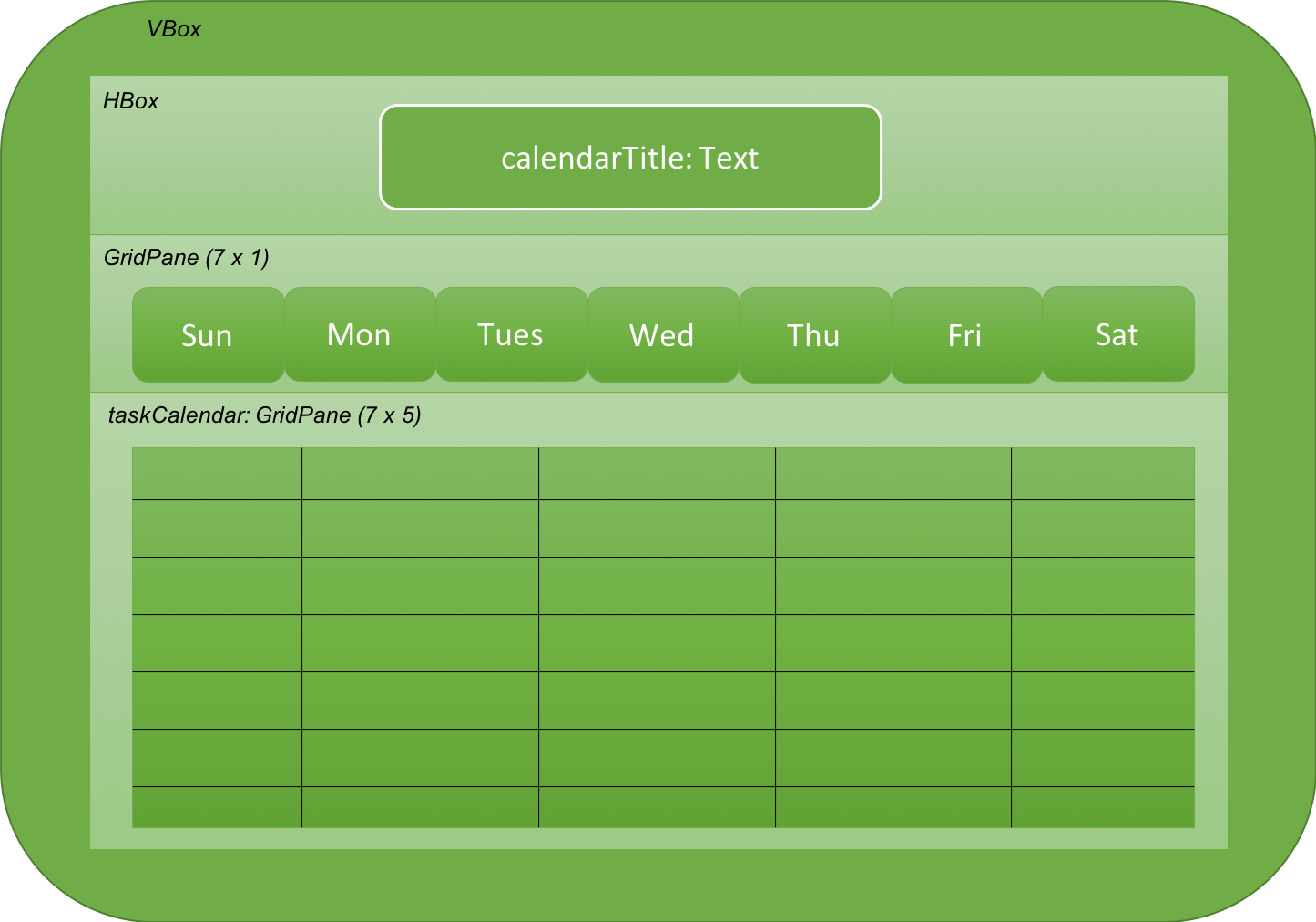
MonthView` uses the JavaFX layout objects extensively when executing its tasks. The following are some instances when JavaFX layout objects are called:
-
Populating the dates in the calendar: Adding a
Textobject, which contains the numerical value of a particular date, to the exact column and row in thetaskCalendar. The method is implemented as such:
private void addMonthDate(Text dateToPrint, int column, int row) {
    // To update the JavaFX component from a non-JavaFX thread
    Platform.runLater(new Runnable() {
        @Override
        public void run() {
            taskCalendar.add(dateToPrint, column, row);
        }
    });

    taskCalendar.setHalignment(dateToPrint, HPos.LEFT);
    taskCalendar.setValignment(dateToPrint, VPos.TOP)
    dateToPrint.setId("date" + String.valueOf(dateCount));
}-
Adding the tasks’ entries onto the calendar: Adding a
ListViewobject, which contains a list ofEntryCard`s, to the exact column and row in the `taskCalendar. AnEntryCardrepresents a task entry, which will be added to the date which reflects the deadline of the task. The method is implemented as such:
private void addEntryListView(ObservableList<EntryCard> toAddObservableList, int row, int column) {
    ListView<EntryCard> entries = new ListView<>();
    entries.setId("entry" + String.valueOf(row) + String.valueOf(column));
    entries.setItems(toAddObservableList);
    entries.setCellFactory(listView -> new EntryListViewCell());
    entries.setMaxHeight(60);

    // To update the JavaFX component from a non-JavaFX thread
    Platform.runLater(new Runnable() {
        @Override
        public void run() {
            taskCalendar.add(entries, column, row);
        }
    });

    taskCalendar.setValignment(entries, VPos.BOTTOM);
}
MonthView also works very closely with the Logic component to accomplish,
-
Adding of the tasks’ entries onto the calendar, by retrieving an unmodifiable
ObservableListcontaining the list ofTask`s. A listener to added to the `ObservableListso that the calendar is updated with the latest tasks’ entries when a change in the list is detected. The method is implemented as such:
private void addListenerToTaskList() {
    taskList.addListener(new ListChangeListener<Task>() {
        @Override
        public void onChanged(Change change) {
            while (change.next()) {
                clearCalendar();
                setMonthCalendarDatesAndEntries(viewYearMonth.getYear(), viewYearMonth.getMonthValue());
            }
        }
    });
}-
Switching the month view when users execute the respective calendar feature commands, by retrieving an
ObservableListcontaining a list of executed commands by the user. A listener is added to theObservableListso that the month view is changed accordingly when a calendar feature command in the list is detected. The method is implemented as such:
private void addListenerToExecutedCommandsList() {
    executedCommandsList.addListener(new ListChangeListener<String>() {
        @Override
        public void onChanged(Change change) {
            while (change.next()) {
                int size = executedCommandsList.size();
                String executedCommand = executedCommandsList.get(size - 1);

                if ((executedCommand.equals(CurrentMonthCommand.COMMAND_WORD)) || (executedCommand.equals(CurrentMonthCommand.COMMAND_ALIAS))) {
                    goToCurrentMonth();
                }

                // … other similiar if statements for the remaining calendar feature commands ...
            }
        }
    });
}
Implementation of CalendarPanel
CalendarPanel simply displays the calendar, by using the JavaFX StackPane object as a placeholder for MonthView, which contains the basic layout of the calendar. After loading its own FXML file, it will fetch the display for MonthView as such:
private void createMainView() {
    monthView.getMonthView(currentYearMonth);
    calendarPane.getChildren().add(monthView.getRoot());
}
Scenario
Suppose the user executes a calendar feature command. Calendar Sequence Diagram shows the interactions within the Logic and UI components for the execute(“nmonth”) API call.
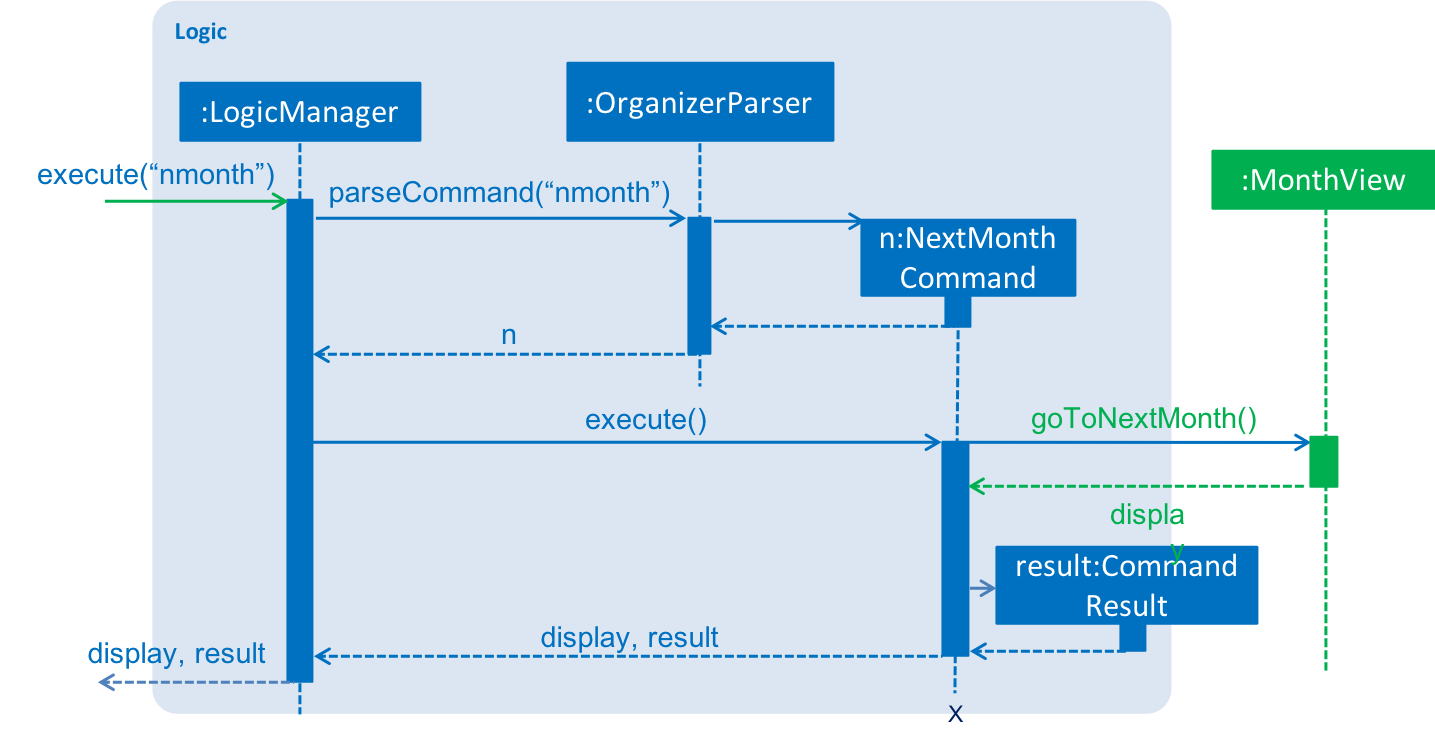
The sequence flow is slightly similar to that of the execution of a normal command (refer to [fig-LogicSequenceDiagram]), and is as follows:
-
Logicuses theOrganizerParserclass to parse the calendar feature command. -
This results in a
Commandobject which is executed by theLogicManager. -
The command execution triggers the
MonthViewclass in theUI, which will display the new month view. -
The result of the command execution is encapsulated as a
CommandResultobject which is passed to theUI. It will be shown in theResult Display Box.
Design Considerations
Aspect: Implementation of calendar feature
-
Alternative 1 (current choice): Draw the calendar manually using the JavaFX library
-
Pros: The feature is customised for PrioriTask.
-
Cons: There is a need to invest a lot of time into creating a feature that has been already been developed and freely available.
-
-
Alternative 2: Use a third-party framework / library
-
Pros: This speeds up development, especially if it has already been thoroughly tested and does not have many bugs.
-
Cons: It is not customised for the application, and may require much time to tweak or work around the framework / library to suit the application.
-
Aspect: Updating of tasks’ entries on the calendar
-
Alternative 1 (current choice): Clears the calendar, and draws everything (i.e. the dates and entries) again
-
Pros: It is easy to implement.
-
Cons: There may be performance issues (there may be lag during execution of undoable commands).
-
-
Alternative 2: Track the
Taskthat is being added / modified, and update the calendar accordingly-
Pros: The update of the calendar will be almost instantaneous. The chances of lag is rare.
-
Cons: It is difficult to implement. There is a need to ensure that the tracking of
Tasks added / modified is accurate.
-