By: CS2103JAN2018-W13-B4 Since: April 2018 Licence: MIT
- 1. Introduction
- 2. Getting Started
- 3. Using PrioriTask
- 4. User Features
- 4.1. Signing up:
signuporsu[since v1.3] - 4.2. Logging in:
loginorin[since v1.4] - 4.3. Logging out:
logoutorout[since v1.4] - 4.4. Adding question answer set:
addqa[since v1.4] - 4.5. Retrieving question for user’s password:
forgotpasswordorfp[since v1.4] - 4.6. Answering question:
answerorans[since v1.4] - 4.7. Deleting an account
[coming in v2.0]
- 4.1. Signing up:
- 5. Task Management Features
- 5.1. Adding a task:
addora - 5.2. Deleting a task :
deleteord - 5.3. Editing a task :
editore - 5.4. Listing tasks
- 5.5. Locating tasks
[since v1.2] - 5.6. Marking task as complete:
toggleort[since v1.2] - 5.7. Clearing all tasks :
clearorc - 5.8. Recurring a task :
recurworrw[since v1.5rc] - 5.9. Deleting a task and all its recurred versions :
deleterordr[since v1.5] - 5.10. Removing tags from all tasks :
removeorr[since v1.5]
- 5.1. Adding a task:
- 6. Subtask Management Features
- 7. Calendar Features
- 8. PrioriTask Features
- 9. Reminders
[coming in v2.0] - 10. FAQ
- 11. Command Summary
1. Introduction
PrioriTask is a desktop task management application. It is not just any task management application, but a combination of the to-do list, calendar and reminder features, with an added bonus of automatic updating and sorting of your tasks based on priority levels. It helps you keep track of your tasks, while providing you with at-a-glance views of upcoming tasks by day, week or month. PrioriTask is optimized for those who prefer to interact with an application by typing commands instead of clicking using a cursor.
This guide will show you how to get started using PrioriTask, and will introduce you to the different features PrioriTask has.
Interested? Jump to Section 2, “Getting Started” to get started. Enjoy!
2. Getting Started
2.1. Setting up
This section provides instructions on setting up PrioriTask.
-
Ensure that you have Java
1.8.0_60or later installed in your computer. You may download the latest version of Java here.PrioriTask works best on Java 1.8.0_60or later.
It will not work with earlier versions of Java 8 (i.e. Java1.8.0_51and below). -
Download the latest
organizer.jarhere (Refer to Figure 1, “Downloading the latestorganizer.jar”)..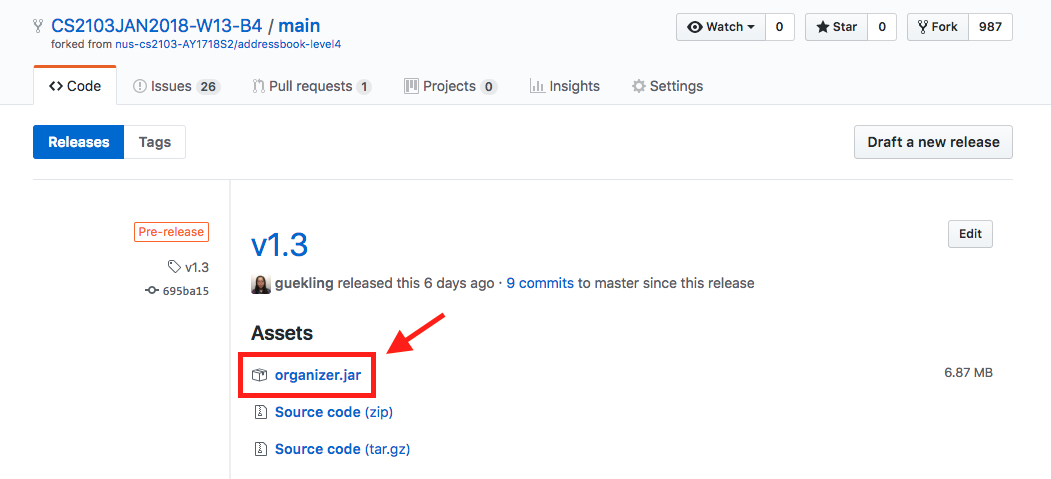 Figure 1. Downloading the latest
organizer.jar -
Copy the file to the folder you want to use as the home folder for PrioriTask.
-
Double-click the file to start the application. The main page should appear in a few seconds (refer to Figure 2, “PrioriTask’s main page”). If the application is unable to start, refer to Section 10, “FAQ” for the solution.
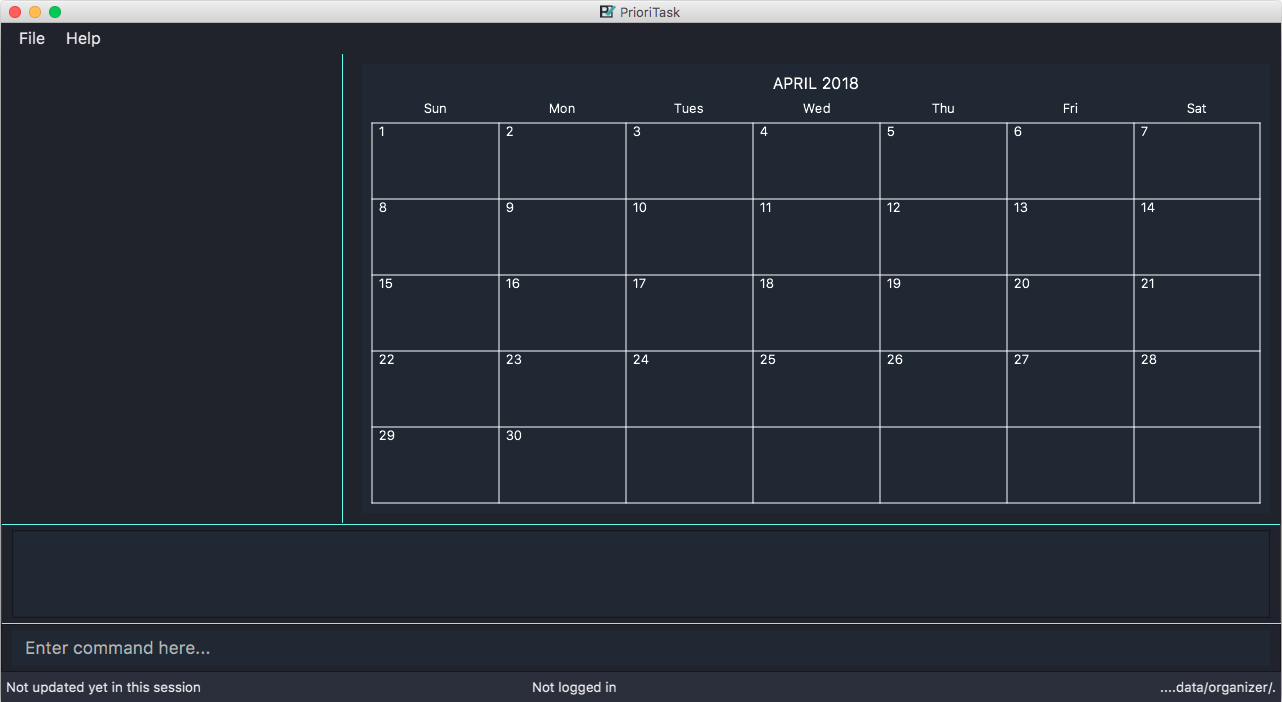 Figure 2. PrioriTask’s main page
2.2. Signing up
This section provides instructions on creating an account on PrioriTask.
-
Type the command
signup u/USERNAME p/PASSWORDin the command box, replacing theUSERNAMEandPASSWORDwith your own (refer to Figure 3, “Signing up for an account”).The USERNAMEandPASSWORDparameters can only take in alphabetical and numerical values. They will not accept spaces and special symbols (e.g. %, $, etc.), and have to be at least 5 characters long.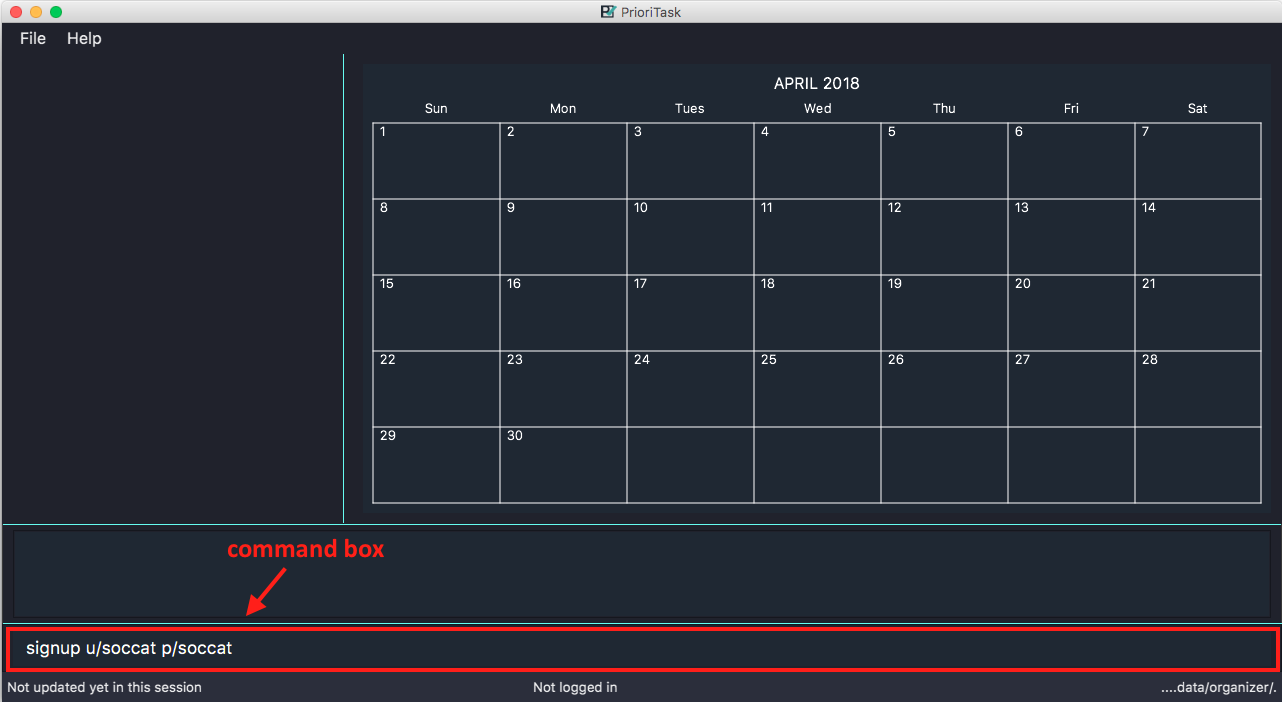 Figure 3. Signing up for an account
 -
Press Enter to execute the command. Your sign up will be confirmed in the result display box upon a successful registration (refer to Figure 4, “Confirmation message upon successful sign up”).
A warning message will be displayed in the result display box if your USERNAMEorPASSWORDcontains characters that are not allowed, or if yourUSERNAMEorPASSWORDdoes not have a minimum of 5 characters.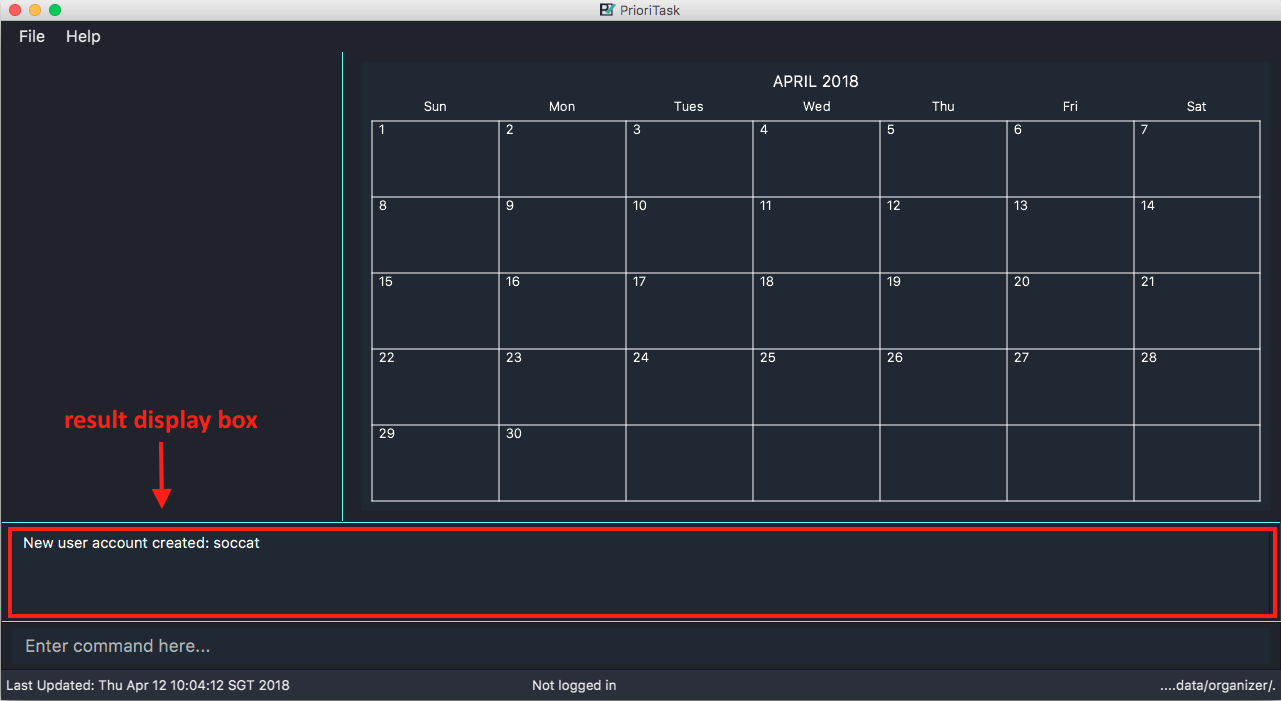 Figure 4. Confirmation message upon successful sign up
2.3. Logging in
This section will guide you through logging into your account on PrioriTask.
-
Type the command
login u/USERNAME p/PASSWORDin the command box, replacing theUSERNAMEandPASSWORDwith your own (refer to Figure 5, “Logging into an account”).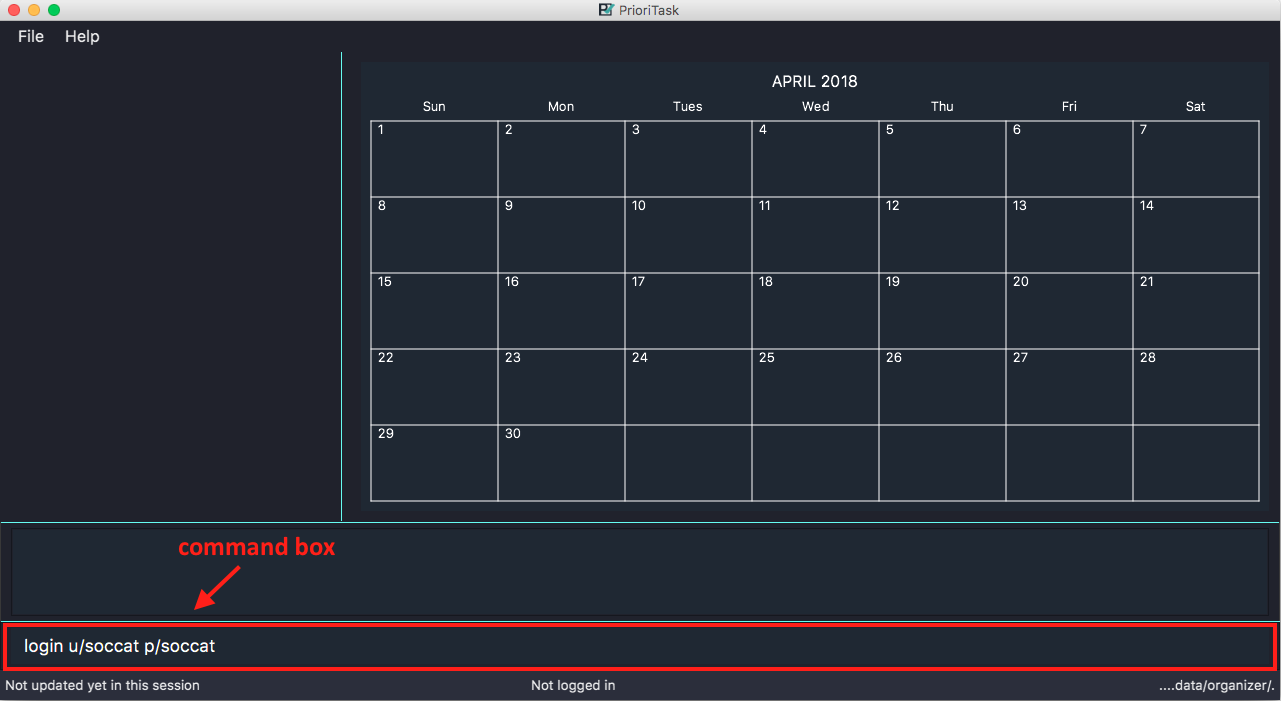 Figure 5. Logging into an account
 -
Press Enter to execute the command. Your login will be confirmed in the result display box (refer to Figure 6, “Confirmation message upon successful login”).
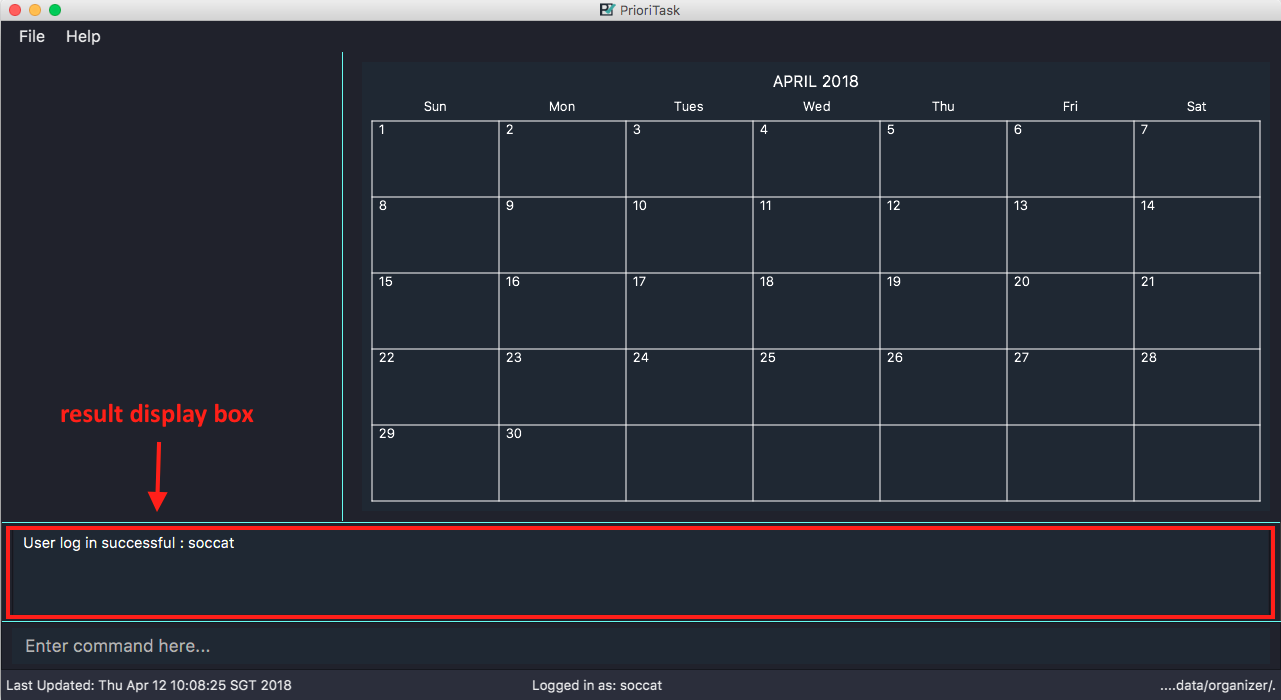 Figure 6. Confirmation message upon successful login
3. Using PrioriTask
This section explains the functions and usages of PrioriTask’s different features.
3.1. User interface of PrioriTask
PrioriTask consists of six different sections (refer to Figure 7, “The Different Sections of PrioriTask”).
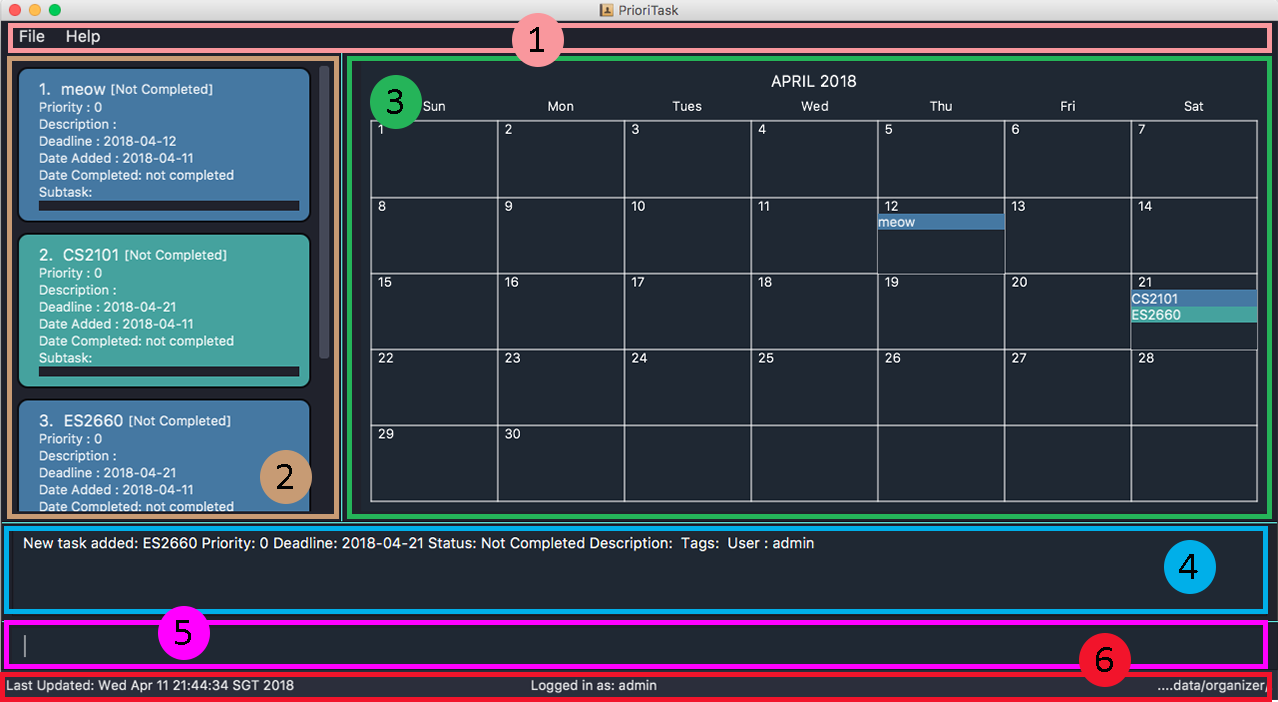
Given below is a quick overview of each section.
-
Menu Bar, where you will be able to:-
Exit the application (
File>Exit). -
Open the Help Window (
Help>Help F1).
-
-
Task List Panel, which displays the tasks and their respective details. The tasks are organised by their priority levels, with the highest priority level at the top. -
Calendar Panel, which displays the calendar a chronological overview of the deadlines of all your tasks. It will display the current month by default. -
Result Display Box, which displays a successful or warning message depending on the command you execute. -
Command Box, where you input the command to be executed. Press Enter to execute the command after you have finished typing. -
Status Bar Footer, which displays:-
The date and time of the last time you have made changes to the data.
-
The user status.
-
The folder address of where your data file is being stored.
-
3.2. Command format
In the following sections, you will be introduced to several commands and their command formats. Here are a few things to take note of:
-
Most command words have aliases.
-
E.g.
ais the alias for the add command. Bothaddandaexecutes the same command.
-
-
The command word and alias are case-sensitive.
-
Typing
helpexecutes the command. -
Typing
Help,heLporHELPdoes not execute the command.
-
-
Words in
UPPER_CASEare the parameters to be supplied by the user.-
E.g. In
add n/NAME,NAMEis a parameter which can be used asadd n/CS2103T Developer Guide.
-
-
Items in square brackets are optional.
-
E.g
n/NAME [t/TAG]can be used asn/CS2103T Developer Guide t/CS2103or asn/CS2103T Developer Guide.
-
-
Items with
… after them can be used multiple times including zero times.-
E.g.
[t/TAG]…can be used ast/CS2103,t/CS2103 t/CS2101etc.
-
-
Parameters can be in any order.
-
E.g. If the command specifies
n/NAME p/PRIORITY_LEVEL,p/PRIORITY_LEVEL n/NAMEis also acceptable.
-
4. User Features
This section explains the commands specific to command inquiry and User account management.
User Parameters
-
USERNAME-
A username can only be alphanumeric characters, must be a minimum of length 5, and must not contain spaces.
-
It is compulsory to set a username.
-
-
PASSWORD-
A password can only be alphanumeric characters, must be a minimum of length 5, and must not contain spaces.
-
It is compulsory to set a password.
-
4.1. Signing up: signup or su [since v1.3]
Sign up for a PrioriTask account.
Format: signup u/USERNAME p/PASSWORD
Examples:
-
signup u/patrick p/pat19503
Add userpatrickwith passwordpat19503to PrioriTask. -
signup u/mary123 p/m4ry456
Add usermary123with passwordm4ry456to PrioriTask.
4.2. Logging in: login or in [since v1.4]
Login to PrioriTask.
Format: login u/USERNAME p/PASSWORD
Examples:
-
login u/patrick p/pat19503
Login to userpatrick. -
login u/mary123 p/m4ry456
Login to usermary123.
4.4. Adding question answer set: addqa [since v1.4]
Add a question answer set for password retrieval. If one currently exists, the new question answer set will replace the current set.
|
Must be currently logged in to a user account on PrioriTask. |
Format: addqa q/QUESTION a/ANSWER
Examples:
-
addqa q/are you male? a/yes
Add questionare you male?with answeryesto current logged user. -
addqa q/are you female? a/yes
Add questionare you female?with answeryesto current logged user.
4.5. Retrieving question for user’s password: forgotpassword or fp [since v1.4]
Retrieve the question for user’s password.
Format: forgotpassword u/USERNAME
Examples:
-
forgotpassword u/patrick
Retrive the question for userpatrick. -
forgotpassword u/mary123
Retrive the question for usermary123.
4.6. Answering question: answer or ans [since v1.4]
Answer a user’s question to retrieve the password.
|
The question need not be retrieved before an attempt at answering the question. |
Format: answer u/USERNAME a/ANSWER
Examples:
-
answer u/patrick a/yes
Answer password question for userpatrickwithyes. -
answer u/mary123 a/no
Answer password question for usermary123withno.
4.7. Deleting an account [coming in v2.0]
Delete a user account to stop using PrioriTask.
5. Task Management Features
This section explains what a Task is, and the commands to manage them.
Task Parameters
-
NAME-
A name can only be alphanumeric characters and spaces, and should not be blank.
-
It is compulsory to set a name.
-
-
STATUS-
A state can only be one of two values : Completed or Not Completed.
-
By default, every new task is marked as Not Completed.
-
-
PRIORITY LEVEL-
A priority level can range from 0 (lowest) to 9 (highest).
-
It is optional to set a priority level. If the user does not specify a priority level, PrioriTask will automatically set it to its default level|*0.
-
Priority levels are automatically updated by gradual incremental steps, based on the date added, current date, and deadline.
-
If the current date is equal to the date added, and the current date is equals or after the deadline.
-
The priority level remains the same.
-
-
If the current date is past the
Deadline.-
The priority level is set to its maximum level : 9.
-
-
If the current date is before the deadline and not equal to the date added.
-
The priority level is set based on how close the current date is to the deadline, and the time span between the date added and the deadline.
-
-
-
-
DESCRIPTION-
A description can be of any value (i.e. alphabet, numbers, special symbols).
-
It is optional to have a description.
-
-
DATEADDED-
A date added is in the format of YYYY-MM-DD.
-
It is automatically set upon task addition.
-
-
DATECOMPLETED-
A date completed is in the format of YYYY-MM-DD.
-
It is automatically set upon toggling a task’s completion.
-
-
DEADLINE-
A deadline is in the format of YYYY-MM-DD.
-
Deadlines should not be invalid (e.g.
2018-02-31is an invalid dateline as there is no such date). -
It accepts dates that have already passed. Priority levels will automatically be set to 9 (the highest level) when the task is added / updated.
-
It is compulsory to have a deadline.
-
-
SUBTASK-
A task can have any number of subtasks (including 0).
-
It is optional to have subtasks.
-
More information about subtask parameters can be found in Section 6, “Subtask Management Features”.
-
-
TAG-
A task can have any number of tags (including 0).
-
It is optional to have tags.
-
Tag labels are coloured. However, please note:
-
Two different tags may have labels of the same colour.
-
After closing and re-opening the application, the same tag label may have a different colour.
-
-
5.1. Adding a task: add or a
Add a task to PrioriTask.
Format: add n/NAME d/DEADLINE [p/PRIORITY_LEVEL] [des/DESCRIPTION] [t/TAG]…
-
The prefix for
NAME,DEADLINE,PRIORITY LEVELandDESCRIPTIONshould not be repeated multiple times.-
add n/NAME d/DEADLINE -
add n/NAME d/DEADLINE DEADLINE
-
Examples:
-
add n/CS2103T Developer Guide p/9 d/2018-03-02 des/Write Introduction
Add a task with nameCS2103T Developer Guide, due on 2nd march 2018, with priority level of 9, with detailed description asWrite Introduction.
5.2. Deleting a task : delete or d
Delete the specified task from PrioriTask.
Format: delete INDEX
-
Deletes the task at the specified
INDEX. -
The index refers to the index number shown in the most recent listing.
-
The index must be a positive integer (i.e. 1, 2, 3, …).
Examples:
-
list
delete 2
Deletes the 2nd task in PrioriTask. -
find Developer
delete 1
Deletes the 1st task in the results of thefindcommand.
5.3. Editing a task : edit or e
Edit an existing task in PrioriTask.
Format: edit INDEX [n/NAME] [p/PRIORITY_LEVEL] [d/DEADLINE] [des/DESCRIPTION] [t/TAG]…
-
Edit the task at the specified
INDEX. The index refers to the index number shown in the last task listing. The index must be a positive integer (i.e. 1, 2, 3, …). -
At least one of the optional fields must be provided.
-
Existing values will be updated to the input values.
-
When editing tags, the existing tags of the task will be removed (i.e adding of tags is not cumulative).
-
You can remove all the task’s tags by typing
t/without specifying any tags after it. -
The prefix for
NAME,DEADLINE,PRIORITY LEVELandDESCRIPTIONshould not be repeated multiple times.-
edit 1 d/DEADLINE -
edit 1 d/DEADLINE DEADLINE
-
Examples:
-
edit 1 p/9 d/2018-12-30
Edits the priority level and deadline of the 1st task to be9and2018-12-30respectively. -
edit 2 n/CS2101 Final Assignment t/
Edits the name of the 2nd task to beCS2101 Final Assignmentand clears all existing tags.
5.4. Listing tasks
Different commands for listing different tasks.
5.4.2. Listing all uncompleted tasks : uncompleted or uncom [since v1.5]
List all uncompleted tasks in PrioriTask.
Format: uncompleted
5.4.3. Listing all completed tasks : completed or com [since v1.5]
List all completed tasks in PrioriTask.
Format: completed
5.5. Locating tasks [since v1.2]
Depending on the suffix (or lack of) at the end of the find command, you can find tasks whose names, descriptions and/or deadlines contain any of the given keywords.
5.5.1. Locating tasks: find or f
Find tasks whose names, descriptions or deadlines contain any of the given keywords.
Format: find KEYWORD [MORE_KEYWORDS] or f KEYWORD [MORE_KEYWORDS]
|
Only the name, description and deadline are searched. |
Examples:
-
find Guide
Returns tasks whose names and/or descriptions containUser GuideandDeveloper Guide
The calendar is updated with the new task listing reflected on theTask List Panel -
f CS2101 Developer User
Returns any task having names and/or descriptionsCS2101,Developer, orUser
The calendar is updated with the new task listing reflected on theTask List Panel -
find User 2018-03-17
Returns tasks whose names and/or descriptions containingUser, and tasks with deadlines2018-03-17
The calendar is updated with the new task listing reflected on theTask List Panel
5.5.2. Locating tasks by name: findn or fn
Find tasks whose names contain any of the given keywords.
Format: findn KEYWORD [MORE_KEYWORDS] or fn KEYWORD [MORE_KEYWORDS]
|
Only the name is searched. |
Examples:
-
findn Guide
ReturnsUser GuideandDeveloper Guide
The calendar is updated with the new task listing reflected on theTask List Panel -
fn CS2101 Developer User
Returns any task having namesCS2101,Developer, orUser
The calendar is updated with the new task listing reflected on theTask List Panel
5.5.3. Locating tasks by description: finddes or fdes
Find tasks whose descriptions contain any of the given keywords.
Format: finddes KEYWORD [MORE_KEYWORDS] or fdes KEYWORD [MORE_KEYWORDS]
|
Only the description is searched. |
Examples:
-
finddes Study
Returns tasks with descriptionsStudy midtermsandstudy chapter 2
The calendar is updated with the new task listing reflected on theTask List Panel -
fdes Study Update Chapter
Returns any task having descriptions containing wordsStudy,Update, orChapter
The calendar is updated with the new task listing reflected on theTask List Panel
5.5.4. Locating tasks by deadline: findd or fd
Find tasks whose deadlines contain any of the given keywords.
Format: findd KEYWORD [MORE_KEYWORDS] or fd KEYWORD [MORE_KEYWORDS]
|
Only the deadline is searched. |
Examples:
-
findd 2018-03-17
Returns tasks with deadlines2018-03-17
The calendar is updated with the new task listing reflected on theTask List Panel -
fd 2018-03-17 2018-09-04 2018-03-21
Returns any task having deadlines2018-03-17,2018-09-04, or2018-03-21
The calendar is updated with the new task listing reflected on theTask List Panel
5.5.5. Locating tasks by tag [coming in v2.0]
Locate all tasks with a common tag.
5.6. Marking task as complete: toggle or t [since v1.2]
Toggle the status of the task identified by the index number used in the last task listing
between Completed and Not Completed.
Format: toggle INDEX
-
Toggle the status of the task at the specified
INDEX. -
The index refers to the index number shown in the most recent listing.
-
The index must be a positive integer (i.e.
1, 2, 3, …).
Examples:
-
list
toggle 1
Toggle the first task in PrioriTask. -
find homework
toggle 1
Toggle the first task in th result offind homeworkcommand.
5.8. Recurring a task : recurw or rw [since v1.5rc]
Recur an existing task in PrioriTask.
Format: recurw INDEX x/TIMES
-
Recurs the task at the specified
INDEX. The index refers to the index number shown in the last task listing. The index must be a positive integer (i.e. 1, 2, 3, …). -
The task is recurred for the specified number of
TIMES, not inclusive of the original existing task. -
The 1st recurred task has the deadline set to be 1 week after the original task’s deadline. The 2nd recurred task has the deadline set to be 2 weeks after the original task’s deadline, and so on.
-
Priority of the recurred tasks is set to be the original task’s priority when it was last edited using
editor when it was first set usingadd. -
The recurred tasks and their subtasks will be set set as
Not Completedby default. -
All subtasks of the recurred tasks will also be set as
Not Completedby default.
Examples:
-
`recurw 1 x/3
Recurs the 1st task weekly for 3 times.
5.9. Deleting a task and all its recurred versions : deleter or dr [since v1.5]
Delete the specified task and all its recurred versions from PrioriTask.
Format: deleter INDEX
-
Deletes the task at the specified
INDEXand all its recurred versions. -
The task must have been recurred before.
-
The index refers to the index number shown in the most recent listing.
-
The index must be a positive integer (i.e. 1, 2, 3, …).
Examples:
-
list
deleter 2
Deletes the 2nd task and all its recurred versions in PrioriTask, if it has been recurred before. -
find Developer
deleter 1
Deletes the 1st task and all its recurred versions in the results of thefindcommand, if it has been recurred before.
5.10. Removing tags from all tasks : remove or r [since v1.5]
Remove specified tags from all tasks in PrioriTask.
Format: remove t/TAG1 [t/TAG2]…
-
Removes TAG1 and TAG2 (if present) from all tasks.
-
Tags do not have to already exist in PrioriTask.
Examples:
-
remove t/friends t/homework
Removes the tagsfriendsandhomeworkfrom all tasks.
6. Subtask Management Features
This section explains what a Subtask is, and the commands to manage them.
Subtask Parameters
-
NAME-
A name can only be alphanumeric characters and spaces, and should not be blank.
-
It is compulsory to set a name.
-
-
STATUS-
A state can only be one of two values : Done or Not Done.
-
By default, every new task is marked as Not Done.
-
6.1. Adding a subtask to a task : adds or as [since v1.2]
Add a subtask to an existing task.
Format: adds INDEX [n/NAME]
-
Adds the subtask at the specified
INDEX. The index refers to the index number shown in the last subtask listing. The index must be a positive integer (i.e. 1, 2, 3, …).
Example:
-
adds 1 n/Submit report
Adds a subtask with nameSubmit reportto the 1st task.
6.2. Deleting a subtask from a task: delete-subtask or ds [since v1.3]
Delete the specified subtask from PrioriTask.
Format: delete-subtask TASK_INDEX SUBTASK_INDEX
-
Delete the
SUBTASK_INDEX-th subtask of task at the specified bySUBTASK_INDEX. -
The index refers to the index number shown in the most recent listing.
-
The index must be a positive integer (i.e.
1, 2, 3, …).
Examples:
-
list
delete-subtask 1 1
Deletes the first subtask of the first task in PrioriTask. -
find cleaning
delete-subtask 2 4
Deletes the fourth subtask of the second task in th result offind cleaningcommand.
6.3. Editing a subtask: edits or es [since v1.5]
Edit name of a subtask.
Format: edits TASK_INDEX SUBTASK_INDEX n/NAME
-
Edit the
SUBTASK_INDEX-th subtask of task at the specified bySUBTASK_INDEX. -
The index refers to the index number shown in the most recent listing.
-
The index must be a positive integer (i.e.
1, 2, 3, …).
Examples:
-
list
delete-subtask 1 1 n/Do some research
Changes the first subtask of the first task name toDo some research. -
find cleaning
delete-subtask 2 4 n/Run for 7.87 Km
Change the fourth subtask of the second task in the result offind cleaningcommand name toRun for 7.87 Km.
6.4. Marking subtask as complete: toggle-subtask or ts [since v1.3]
Toggle the status of the subtask identified by the index number used in the last subtask listing
between Completed and Not Completed.
Format: toggle-subtask TASK_INDEX SUBTASK_INDEX
-
Toggle the status of the
SUBTASK_INDEX-th subtask of task at the specified byTASK_INDEX. -
The index refers to the index number shown in the most recent listing.
-
The index must be a positive integer (i.e.
1, 2, 3, …).
Examples:
-
list
toggle-subtask 1 1
Toggles the first subtask of the first task in PrioriTask. -
find homework
toggle-subtask 2 4
Toggles the fourth subtask of the second task in th result offind homeworkcommand.
6.5. Reordering subtask [coming in v2.0]
Reorder subtasks using a given condition.
7. Calendar Features
The calendar allows you to have a chronological overview of the deadlines of all your tasks. Tasks on the calendar changes according to the last task listing. By default, you will view the current month when you first open PrioriTask. The diagram below (refer to Figure 8, “PrioriTask’s main page”) shows how the calendar would look like when displayed with task entries.
|
The calendar is best viewed fully-maximised on a 1280 x 720 screen (usually a 13” computer screen). The display of the calendar may differ from pictures on other computer screens. |
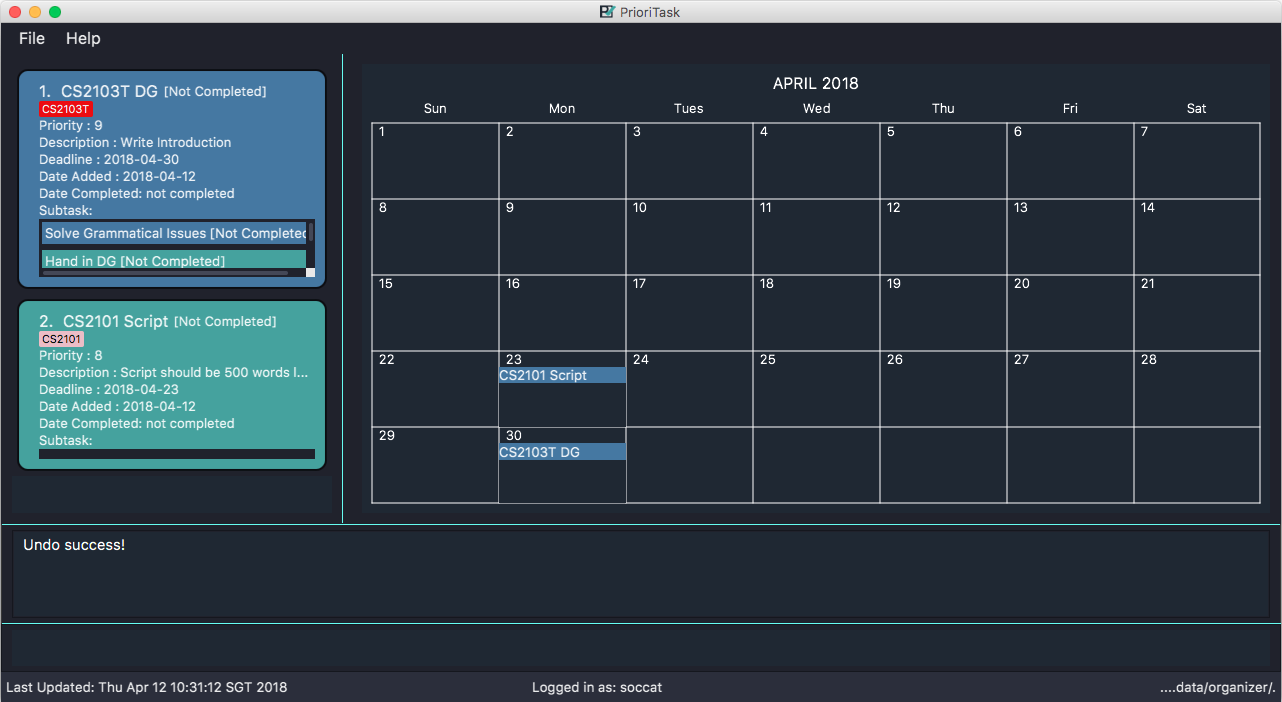
In future releases, the calendar will support,
-
Displaying of only the completed or uncompleted tasks on the calendar, regardless of the last task listing
[coming in v2.0]. -
Viewing of the calendar by days, weeks and years
[coming in v2.0].
7.1. Going to current month: cmonth or cm [since v1.4]
Change the view of the calendar to that of the current month.
Format: cmonth
Example:
-
Current month is
April 2018
ViewsDecember 2018
cmonth
Goes toApril 2018
7.2. Going to previous month: pmonth or pm [since v1.4]
Change the view of the calendar to that of the previous month.
Format: pmonth
Example:
-
Views
March 2018
pmonth
Goes toFebruary 2018
7.3. Going to next month: nmonth or nm [since v1.4]
Change the view of the calendar to that of the next month.
Format: nmonth
Example:
-
Views
March 2018
nmonth
Goes toApril 2018
8. PrioriTask Features
This section explains the commands which access and manage PrioriTask data.
8.3. Listing entered commands : history
List all the commands that you have entered in reverse chronological order.
Format: history
|
Pressing the ↑ and ↓ arrows will display the previous and next input respectively in the command box. |
8.4. Undoing previous command : undo
Restore PrioriTask to the state before the previous undoable command was executed.
Format: undo
|
Undoable commands: those commands that modify PrioriTask’s content ( |
Examples:
-
delete 1
list
undo(reverses thedelete 1command) -
completed
list
undo
Theundocommand fails as there are no undoable commands executed previously. -
delete 1
clear
undo(reverses theclearcommand)
undo(reverses thedelete 1command)
8.5. Redoing the previously undone command : redo
Reverse the most recent undo command.
Format: redo
Examples:
-
delete 1
undo(reverses thedelete 1command)
redo(reapplies thedelete 1command) -
delete 1
redo
Theredocommand fails as there are noundocommands executed previously. -
delete 1
clear
undo(reverses theclearcommand)
undo(reverses thedelete 1command)
redo(reapplies thedelete 1command)
redo(reapplies theclearcommand)
8.6. Saving the data
PrioriTask data is saved in the hard disk automatically after any data-altering command is called.
There is no need to save manually.
8.7. Recover past data [coming in v2.0]
Restore data from a recent date (coming in v2.0)
9. Reminders [coming in v2.0]
This section explains the commands to manage the reminder system (coming in v2.0)
10. FAQ
-
I am unable to start the application. Double-clicking on the
jarfile doesn’t work. What do I do?- For Windows Users
-
-
Find your Java JDK directory.
-
Open
Command Prompt. -
Change the directory to your Java JDK directory.
-
Execute the command
"JAVA_JDK_EXE_FILE_DIRECTORY_PATH" -jar YOUR_JAR_FILE_NAME.jar.-
E.g.
"C:\Program Files\Java\jdk1.8.0_102\bin\javaw.exe" -jar YOUR_JAR_FILE_NAME.jar
-
-
- For Mac/Linux Users
-
-
Open
Terminal. -
Execute the command
java -jar YOUR_JAR_FILE_NAME.jar.
-
-
How do I transfer my data to another computer?
Install the application in the other computer and overwrite the empty data file it creates with the file that contains the data of your previous PrioriTask folder.
11. Command Summary
| Command | Command Format | Example |
|---|---|---|
Add |
|
|
Add question answer set |
|
|
Add subtask |
|
|
Answer question |
|
|
Clear |
|
|
Delete |
|
|
Delete subtask |
|
|
Delete task and its recurred versions |
|
|
Edit |
|
|
Edit subtask |
|
|
Exit |
|
|
Find |
|
|
Find description |
|
|
Find name |
|
|
Find deadline |
|
|
Go to current month |
|
|
Go to previous month |
|
|
Go to next month |
|
|
Help |
|
|
History |
|
|
List |
|
|
List all completed |
|
|
List all uncompleted |
|
|
Login |
|
|
Logout |
|
|
Recur weekly |
|
|
Redo |
|
|
Remove tags |
|
|
Retrieve question |
|
|
Sign up |
|
|
Toggle |
|
|
Toggle subtask |
|
|
Undo |
|